Volume Control Sound Launcher
AtomApplicationsTools
4.512.47K Reviews
- Version
- 1.17.3
- Installs
- 1.00M
- Age Rating
- Everyone
Screenshots
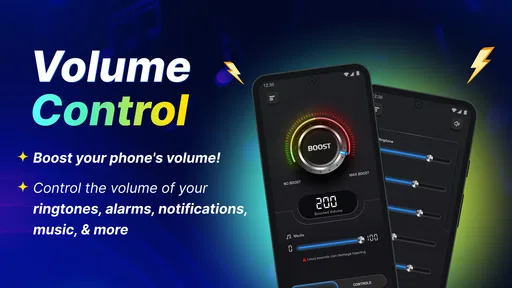
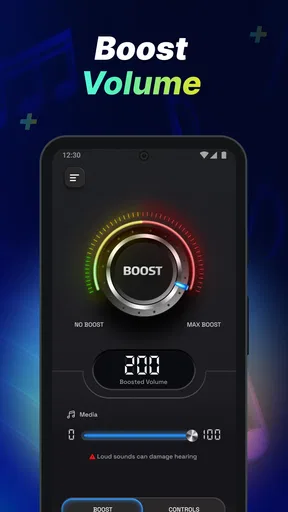
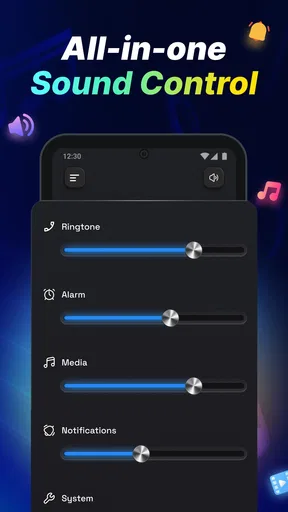
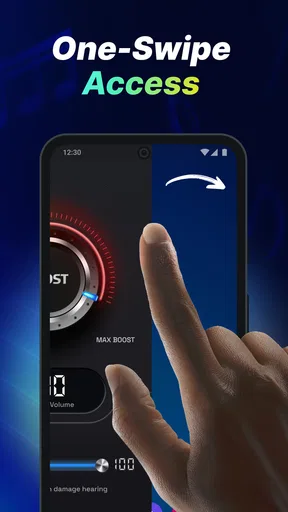
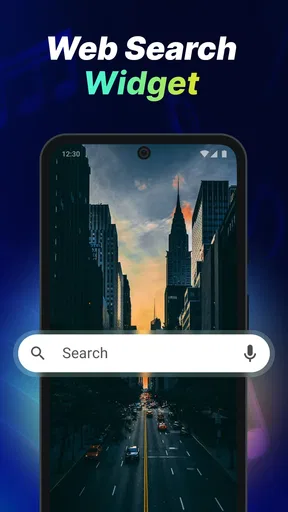
Our Review of Volume Control Sound Launcher
 Analysis by Appyee
I tried Volume Control Sound Launcher with a practical question in mind: would it still deserve a place on my phone after the first few days of curiosity? An audio booster can feel useful immediately, especially when a video, call, alarm, or music track sounds quieter than expected. The harder test is whether it becomes a dependable daily tool rather than another utility I open once and forget.
This is a free Android tools app from AtomApplications, built around controlling volume and making audio easier to hear. Its purpose is straightforward, but that simplicity is part of the appeal. I do not need to learn a complicated audio workstation or adjust a long list of technical settings before trying it. The app is aimed at people who want a more direct way to manage sound on a phone running Android 10 or later.
It has attracted more than a million installs, with an average score of 4.5 from roughly twenty-three thousand ratings and about eight thousand reviews. Those figures suggest that the basic idea connects with a lot of users. Still, popularity does not answer the more useful question: whether the app solves a recurring problem without creating new annoyances. My experience is that its value depends heavily on how often you adjust sound and how much control your phone already gives you.
What it feels like during the first week
The first-week appeal comes from immediacy. When I want louder playback, I am usually not looking for a lesson about equalization, codecs, or speaker design. I want to make a quick adjustment and continue with what I was doing. A focused volume tool fits that moment better than digging through several system menus.
The store summary covers music, calls, alarms, and general sound enhancement, which reflects the situations where this kind of app can be useful. I can imagine opening it before listening to a podcast in a noisy room, checking the volume before setting an alarm, or making a call easier to follow when the phone speaker feels weak. The benefit is not that every recording suddenly becomes high quality. The benefit is having a more deliberate sound-control step between “too quiet” and “acceptable.”
A realistic everyday example is a morning alarm. I might lower media volume at night while watching something, then worry that the alarm will be too quiet the next day. A separate volume-control utility gives me a place to check the relevant sound level instead of assuming that one slider represents every audio source. That small habit can be more useful than a dramatic boost because it reduces uncertainty before sleeping.
Another useful scenario is a short call in a public place. If the other person sounds faint, I can try the app rather than repeatedly pressing the physical volume buttons and hoping the system has reached the right channel. This is especially convenient when I am already holding the phone and need a visible control. I would not treat it as a replacement for headphones or a quieter location, but it can help when the problem is simply an inconvenient volume level.
The app is also approachable for someone who does not want to manage a full audio editor. Traditional equalizer apps often ask users to understand presets, bands, gain, and effects. That can be rewarding for enthusiasts, but it is excessive when the only goal is louder playback. Here, the central idea is easier to grasp: control the sound, test it, and decide whether the result is comfortable.
That simplicity has a trade-off. A louder signal is not automatically a clearer signal. If the original audio is poorly recorded, boosting it may emphasize harshness, distortion, or background noise along with the voice or music. I found it important to increase sound gradually rather than jumping straight to the maximum available level. This is one of the app’s most important practical lessons: use it to solve a modest volume problem, not to force a tiny phone speaker to behave like a larger audio system.
The best first-week habit is to compare the result with the original setting at the same listening distance. A louder sound can seem better for a few seconds simply because it is louder. After switching back and forth, I can judge whether speech is genuinely easier to follow or whether the audio has only become more aggressive. That quick comparison prevents the novelty of a boost from being mistaken for a lasting improvement.
Where the early convenience is strongest
The app makes the most sense for people who regularly move between quiet and noisy environments. A volume level that works at home may be inadequate on public transport, in a kitchen with running appliances, or outdoors. I also see value for users who frequently switch between music, spoken audio, alarms, and calls and prefer a dedicated place to make adjustments.
It may help families sharing a device, too. One person may prefer quiet playback while another needs stronger audio for spoken content. A straightforward control tool is easier to hand over than a collection of specialized sound apps. The Everyone content rating also makes the app broadly approachable, although sensible listening habits still matter more than the age label.
People who already have excellent system-level volume controls, reliable headphones, and a phone with strong speakers may notice less benefit. In that situation, the app can feel like an extra layer placed on top of tools that already work. I would not install it merely because “louder” sounds attractive. I would install it because I repeatedly encounter a specific volume-control problem.
Whether it earns space after the novelty fades
After the first month, the question changes from “Can this make audio louder?” to “When do I actually need it?” That distinction matters. Utilities often feel impressive during testing because I deliberately search for situations where they help. Long-term value is different: the app must fit naturally into routines without demanding constant attention.
For me, the strongest recurring use is checking sound before an important event. An alarm, navigation instruction, voice message, or short call can be more important than casual music playback. If I make volume checks part of those routines, the app has a clear role. It becomes a small safeguard rather than an app I open randomly to experiment with sound.
It can also be useful for older phones or devices whose speakers feel underpowered for spoken content. I would focus on voices first because speech benefits most from being comfortably audible. Music is a more complicated test: boosting it may make a track seem fuller, but it can also expose brittle highs and muddy low frequencies. My long-term preference is to use the tool selectively for speech and occasional volume problems rather than leaving every audio source permanently boosted.
That selective approach is important for maintenance. A sound enhancer is easy to forget after enabling it, and then a later video or notification may seem unusually loud. I recommend treating each adjustment as temporary unless I have tested it across the kinds of audio I normally use. Before handing the phone to someone else, I would also return the level to a comfortable setting. This prevents a useful boost from becoming an unpleasant surprise.
The current version is 1.12.0, and the app was released on December 3, 2025. Those details place it among newer tools rather than a long-established part of Android’s basic audio stack. I would keep an eye on how naturally it fits alongside system updates and other sound controls. A utility earns lasting trust when it remains predictable after the phone changes, not just when it works during an initial test.
How it compares with ordinary alternatives
The usual alternative is the phone’s own volume panel. That option is simpler because it is already present, requires no extra app, and is normally enough for ordinary adjustments. If I only need to raise or lower media volume once in a while, the system control remains the better choice. Installing another tool for a problem that happens twice a year adds unnecessary clutter.
Headphones are another alternative, and they usually provide a more controlled listening experience than pushing a small speaker harder. They can improve clarity and reduce the temptation to use excessive volume in a noisy place. The drawback is that headphones are not always available, suitable for a call, or convenient when I need to hear the surrounding environment.
Equalizer apps are better for listeners who want to shape tone rather than simply increase loudness. They can address a dull vocal range or excessive bass when the user is willing to tune settings carefully. Volume Control Sound Launcher is more approachable for a quick intervention, but it is not the option I would choose for detailed music production or careful headphone calibration.
External speakers remain the strongest solution when the real issue is room-filling sound. No phone utility can fully replace better hardware. If I regularly need high volume for gatherings, presentations, or a large room, buying or using a suitable speaker is more sensible than depending on software amplification. The app is best viewed as a convenience layer for ordinary phone use, not a hardware upgrade.
Small routines that make the app more dependable
I found three habits especially useful. First, I test the app with speech, music, and an alarm rather than judging it from one song. These sources reveal different weaknesses. Speech shows whether voices become easier to follow, music exposes harshness, and an alarm confirms whether the practical situation I care about is actually covered.
Second, I make changes in small steps and listen for discomfort. If the sound becomes sharp, rattly, or tiring, I back off immediately. This is not just about audio quality; it also keeps the app from turning a temporary problem into a daily listening habit at an unnecessarily high level.
Third, I avoid assuming that the loudest setting is the most useful setting. In a noisy environment, clarity may matter more than raw output. Moving the phone closer, reducing background noise, or using headphones can produce a better result than increasing amplification. The app is most effective when combined with those simple choices rather than used as the only answer.
These routines also answer a common practical concern: whether the app can be left running all the time. I would not make that my default approach. A sound-control tool has more predictable value when I open it for a particular need, adjust carefully, and then return to normal listening. Keeping any booster permanently active may make later volume changes harder to interpret, especially when switching between media and calls.
Maintenance, fatigue, and the long-term verdict
The maintenance burden is modest, but it is not zero. I need to remember what I changed and notice when a setting no longer suits the next audio source. That is a small cost compared with managing a complex equalizer, yet it is still enough to make the app unnecessary for users whose built-in controls already solve everything.
There are also several sources of fatigue. Repeatedly opening a separate utility for tiny adjustments can become irritating. Over-amplified music may sound tiring even when it seems exciting at first. And if I use the app whenever speech is hard to hear, I may overlook the real cause: poor recording quality, a blocked speaker, a noisy room, or a call connection problem. The app can adjust volume; it cannot repair every reason audio feels weak.
I would also be cautious with sensitive hearing and prolonged listening. Louder is not automatically safer or better, and the sensible response to discomfort is to reduce the level. For calls and alarms, a moderate boost may be practical. For long music sessions, I would prioritize comfortable listening and take breaks instead of chasing maximum output.
One question many users will have is whether this is suitable for every Android phone. The listed minimum is Android 10, so I would first check the phone’s operating system before planning around it. On a compatible device, the experience can still vary because speakers, audio routing, and manufacturer controls differ. A result that helps on one phone may be unnecessary on another, which is why a short test with familiar audio is more useful than assuming the same outcome for everyone.
Another question is whether it replaces the phone’s existing volume controls. In my view, it should complement them, not make them irrelevant. The physical buttons and system panel remain the fastest way to make ordinary changes. This app earns its place when I want a more dedicated sound adjustment or need to experiment with making a particular source easier to hear.
The developer, AtomApplications, has positioned the product in the tools category rather than presenting it as a full recording or music-production suite. That framing feels accurate. I would recommend it to someone who has a recurring but uncomplicated volume issue, especially with calls, alarms, or spoken media. The free price makes trying it low-risk, and the broad Everyone rating keeps it accessible for general household use.
I would skip it if my main goal is studio-quality music tuning, powerful room audio, or a permanent replacement for headphones. I would also skip it if I rarely struggle to hear anything on my phone. In those cases, the system controls or better hardware are cleaner solutions with less to remember.
My final judgment is positive but measured. Volume Control Sound Launcher earns lasting space when it is tied to a repeatable need, not when it is used as a novelty booster. I like its direct purpose and the way it can turn an awkward volume problem into a quick adjustment. I do not see it as a miracle fix, and I would not leave high amplification active without checking how it affects different audio sources.
After the initial curiosity fades, its value comes from small moments: confirming an alarm, making a voice message easier to follow, or improving a call when the phone’s normal controls are not quite enough. If those moments happen regularly, this free tool is worth trying on a compatible Android device. If they do not, the built-in volume panel remains the more sensible long-term choice.
Privacy and Permissions
See what permissions an app requests and how it handles your data.
- Location
- precise location (GPS and network-based)
- Other
- view network connections, expand/collapse status bar, full network access, change your audio settings, run at startup, reorder running apps, set wallpaper, control vibration, prevent device from sleeping, Google Play license check
Verdict
Strengths of Volume Control Sound Launcher
- Quick access to volume controls from the launcher
- Useful for adjusting media, calls, alarms, and notifications
- May reduce the need to open Android Settings
- Simple tool for users who change volume levels frequently
- Helpful when physical volume buttons are inconvenient
Limitations of Volume Control Sound Launcher
- Some features may depend on Android version or device manufacturer
- Could require accessibility or overlay permissions to work fully
- Launcher shortcuts may add clutter to an otherwise clean home screen
- Limited usefulness for users who rarely adjust individual volume channels
- Permission requests may concern privacy-conscious users
Other Releases by AtomApplications
View All
QR & Barcode Scanner Launcher
Tools4.2

Brightest Flashlight Launcher
Tools4.3

2026 Calendar Launcher
Productivity4.4

Alarm Clock Launcher
Productivity4.3
Similar Picks in This Category
View All
Google LLC4.0

Gboard - the Google Keyboard
Google LLC4.5

Google Play services
Google LLC4.3

Google Play Store
Google LLC4.9

Files by Google
Google LLC4.5

SHAREit: Transfer, Share Files
Smart Media4U Technology Pte.Ltd.4.3
Frequently Asked Questions
What is Volume Control Sound Launcher and what does it do?
Volume Control Sound Launcher is an Android utility designed to make audio controls easier to access. Instead of opening the full Settings menu, it provides shortcuts or a launcher-style interface for adjusting media, ringtone, notification, alarm, and call volumes. It can be useful when you frequently switch between silent, vibrate, and normal sound profiles, although the exact controls may depend on your device and Android version.
Can Volume Control Sound Launcher control every sound level separately?
The app is generally intended to provide quick access to Android’s available volume categories, such as media, ringtone, alarms, notifications, and voice calls. However, the number of separate sliders you see may vary by manufacturer, Android version, and device configuration. Some phones combine notification and ringtone volume or restrict certain controls, so the application may open the relevant system panel rather than independently modifying every sound channel.
Does Volume Control Sound Launcher require special permissions?
A basic volume-control launcher normally needs limited permissions because Android already provides system controls for changing audio levels. Depending on the version installed, it may request permission to create shortcuts, display controls, or access notification-related features. Before accepting anything, review the permission list on Google Play and in Android Settings. Avoid granting access that appears unrelated to volume management or shortcut functionality.
Will Volume Control Sound Launcher work on all Android phones and tablets?
Compatibility can differ between devices. The application should work best on Android versions that support the system volume panels and shortcut behavior used by the app, but customized interfaces from Samsung, Xiaomi, Huawei, Oppo, and other manufacturers may display controls differently. Older devices may lack some features, while newer Android releases can limit background behavior. Check the store listing and your Android version before downloading.
Is Volume Control Sound Launcher free, and are there any disadvantages?
The availability and pricing model should be checked on the official store page because editions can change over time. If the app is free, it may include advertising or optional paid features, depending on the publisher. Its main advantage is faster access to sound settings, but it may offer fewer controls than dedicated audio-management tools. Users should also consider ads, shortcut reliability, battery behavior, and privacy information before installing.
